テンプレートからdAppへ:NEROウォレットテンプレートにNFT&トークン機能を追加
このチュートリアルでは、NERO WalletテンプレートにNFTミント、トークン作成、NFTギャラリー機能を追加する方法を解説します。最後まで完了すると、以下のような結果になるはずです。
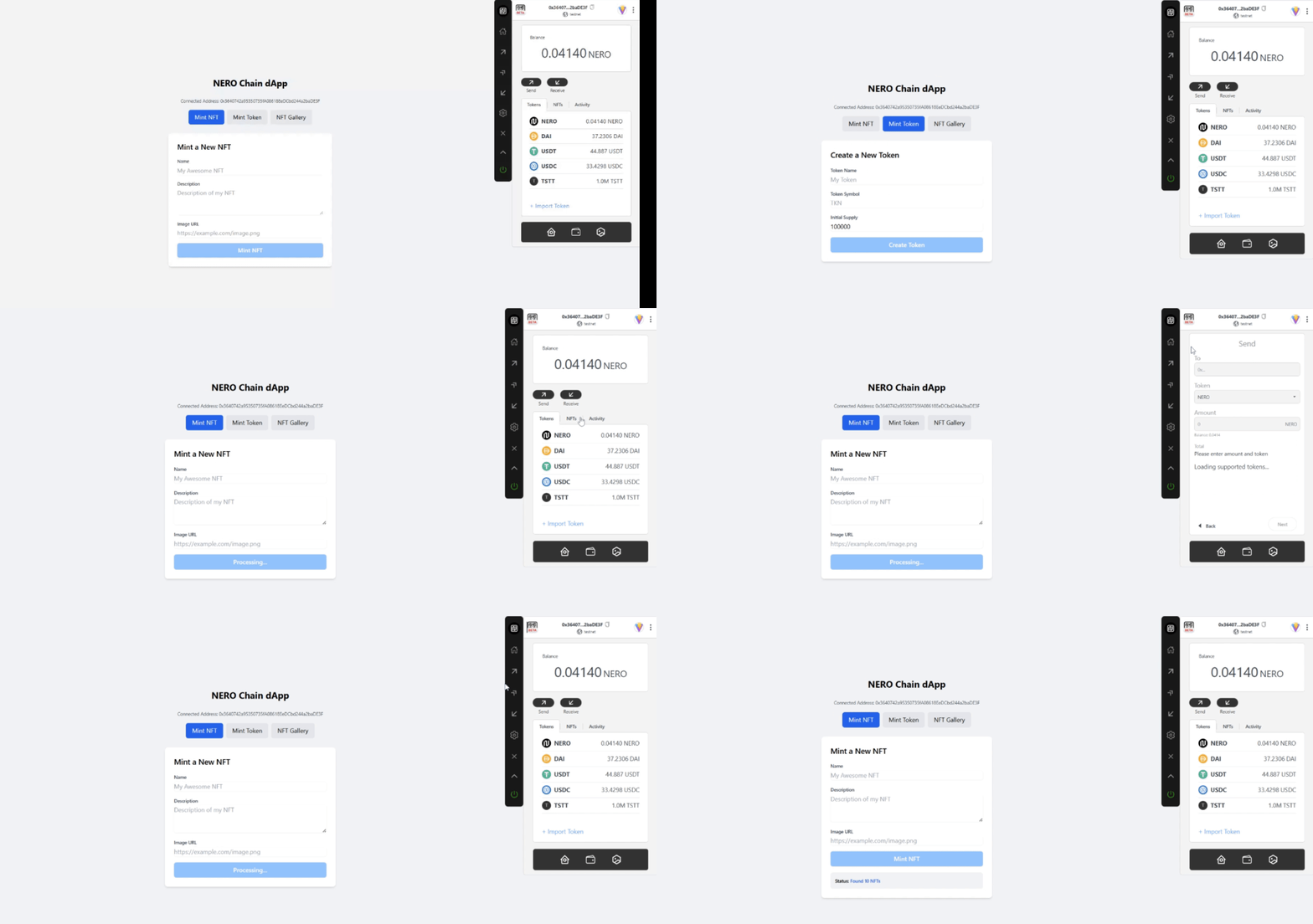
図1:NEROウォレットを使用したアプリケーション
前提条件
nero-aa-walletテンプレートを使用してプロジェクトを作成してください:
git clone https://github.com/nerochain/nero-aa-wallet注意: この例ではソーシャルログインも有効化できます。Web3Authのサイトにアクセスして、GoogleやFacebookなどのプロバイダでClientIdを発行してください。
ステップ1:プロジェクト構成の理解
まずは、プロジェクト構成を把握しましょう。
├── nerowallet.config.ts  # Wallet configuration with chain and API details
├── src/
│   ├── App.tsx           # Main application component
│   ├── Sample.tsx        # Sample implementation with a single button
│   ├── index.tsx         # Entry point for React
│   ├── main.tsx          # Main rendering
│   ├── abis/             # Contract ABIs
│   ├── components/       # UI components
│   ├── hooks/            # React hooks
│   └── constants/        # Constants like ABIs
ステップ2:HomePageコンポーネントを作成
-
src/HomePage.tsxという新しいファイルを作成します。 . NFTミント、トークン作成、NFTギャラリーの3つのタブで構成します。 -
初期インポート文を追加します:
import { useState, useEffect } from 'react';
import { useSignature, useSendUserOp, useConfig } from '@/hooks';
import { ERC20_ABI, ERC721_ABI } from '@/constants/abi';
import { ethers } from 'ethers';

// Import ABIs
import CreateTokenFactory from '@/abis/ERC20/CreateTokenFactory.json';

// Define contract addresses
const TOKEN_FACTORY_ADDRESS = '0x00ef47f5316A311870fe3F3431aA510C5c2c5a90';
const FREE_NFT_ADDRESS = '0x63f1f7c6a24294a874d7c8ea289e4624f84b48cb';
ステップ3:NERONFTのABIを定義
mint関数を含むNERONFTのABIを追加します。:
// Define NERONFT ABI with the mint function
const NERO_NFT_ABI = [
  // Basic ERC721 functions from the standard ABI
  ...ERC721_ABI,
  // Add the mint function that exists in the NERONFT contract
  'function mint(address to, string memory uri) returns (uint256)',
  'function tokenURI(uint256 tokenId) view returns (string memory)',
];
ステップ4:Reactの状態とフックを設定
ウォレットの状態管理とhooksを導入して機能を構築していきます。:
const HomePage = () => {
  const [activeTab, setActiveTab] = useState('mint-nft');
  const { AAaddress, isConnected } = useSignature();
  const { execute, waitForUserOpResult } = useSendUserOp();
  const config = useConfig();
  const [isLoading, setIsLoading] = useState(false);
  const [userOpHash, setUserOpHash] = useState(null);
  const [txStatus, setTxStatus] = useState('');
  const [isPolling, setIsPolling] = useState(false);
  const [nfts, setNfts] = useState([]);

  // Form state
  const [tokenName, setTokenName] = useState('');
  const [tokenSymbol, setTokenSymbol] = useState('');
  const [tokenSupply, setTokenSupply] = useState('100000');
  const [nftName, setNftName] = useState('');
  const [nftDescription, setNftDescription] = useState('');
  const [nftImageUrl, setNftImageUrl] = useState('');
ステップ5:タブ切り替え機能の実装
アクティブなタブを切り替える関数を追加します:
// Handle tab change
const handleTabChange = (tab) => {
  setActiveTab(tab);
  setTxStatus('');
  setUserOpHash(null);

  // If switching to NFT gallery, fetch the NFTs
  if (tab === 'nft-gallery' && isConnected) {
    fetchNFTs();
  }
};
ステップ6:トークンミント機能の実装
ERC20トークンを作成するための関数を追加します。
// Mint ERC20 token
const handleMintToken = async () => {
  if (!isConnected) {
    alert('Please connect your wallet first');
    return;
  }

  setIsLoading(true);
  setUserOpHash(null);
  setTxStatus('');

  try {
    // Call the createToken function on the token factory contract
    await execute({
      function: 'createToken',
      contractAddress: TOKEN_FACTORY_ADDRESS,
      abi: CreateTokenFactory.abi,
      params: [tokenName, tokenSymbol, tokenSupply],
      value: 0,
    });

    const result = await waitForUserOpResult();
    setUserOpHash(result.userOpHash);
    setIsPolling(true);

    if (result.result === true) {
      setTxStatus('Success!');
      setIsPolling(false);
    } else if (result.transactionHash) {
      setTxStatus('Transaction hash: ' + result.transactionHash);
    }
  } catch (error) {
    console.error('Error:', error);
    setTxStatus('An error occurred');
  } finally {
    setIsLoading(false);
  }
};
ステップ7:NFTミント機能の実装
NFTをミントする機能を実装します。異なるコントラクトを呼び出す点に注意しましょう。
// Mint NFT
const handleMintNFT = async () => {
  if (!isConnected) {
    alert('Please connect your wallet first');
    return;
  }

  if (!nftName || !nftImageUrl) {
    alert('Please provide a name and image URL for your NFT');
    return;
  }

  setIsLoading(true);
  setUserOpHash(null);
  setTxStatus('');

  try {
    // Create metadata JSON
    const metadataJson = JSON.stringify({
      name: nftName,
      description: nftDescription,
      image: nftImageUrl,
      attributes: []
    });

    // For this demo, we'll just use the image URL directly
    await execute({
      function: 'mint',
      contractAddress: FREE_NFT_ADDRESS,
      abi: NERO_NFT_ABI,
      params: [AAaddress, nftImageUrl],
      value: 0,
    });

    const result = await waitForUserOpResult();
    setUserOpHash(result.userOpHash);
    setIsPolling(true);

    if (result.result === true) {
      setTxStatus(`Success! NFT "${nftName}" minted!`);
      setIsPolling(false);
      // Reset form
      setNftName('');
      setNftDescription('');
      setNftImageUrl('');
      // Refresh NFT gallery after successful mint
      fetchNFTs();
    } else if (result.transactionHash) {
      setTxStatus('Transaction hash: ' + result.transactionHash);
    }
  } catch (error) {
    console.error('Error:', error);
    setTxStatus('An error occurred');
  } finally {
    setIsLoading(false);
  }
};
ステップ8:Direct RPCによるNFTギャラリー機能
mintしたNFTを表示するために、RPCを使ってNFT情報を取得する機能を追加します。
// Fetch NFTs for the gallery using direct RPC calls
const fetchNFTs = async () => {
  if (!isConnected || !AAaddress) return;

  try {
    setIsLoading(true);
    setNfts([]); // Clear existing NFTs while loading

    // Create a provider using the RPC URL from config
    const provider = new ethers.providers.JsonRpcProvider(config.rpcUrl);

    // Create a contract instance for the NFT contract
    const nftContract = new ethers.Contract(FREE_NFT_ADDRESS, NERO_NFT_ABI, provider);

    // Get the balance of NFTs for the user
    const balance = await nftContract.balanceOf(AAaddress);
    const balanceNumber = parseInt(balance.toString());

    if (balanceNumber > 0) {
      const fetchedNfts = [];

      // Fetch each NFT the user owns
      for (let i = 0; i < Math.min(balanceNumber, 10); i++) {
        try {
          // This is a simplified approach - in a real app, you'd need to get tokenIds owned by the address
          const tokenId = i;

          // Try to get the token URI
          const tokenURI = await nftContract.tokenURI(tokenId);

          // Add to our NFTs array
          fetchedNfts.push({
            tokenId: tokenId.toString(),
            tokenURI: tokenURI,
            name: `NERO NFT #${tokenId}`,
          });
        } catch (error) {
          console.error(`Error fetching NFT #${i}:`, error);
        }
      }

      if (fetchedNfts.length > 0) {
        setNfts(fetchedNfts);
        setTxStatus(`Found ${fetchedNfts.length} NFTs`);
      } else {
        // Fallback to sample NFTs
        setNfts([
          {
            tokenId: '1',
            tokenURI: 'https://bafybeigxmkl4vto4zqs7yk6wkhpwjqwaay7jkhjzov6qe2667y4qw26tde.ipfs.nftstorage.link/',
            name: 'NERO Sample NFT #1',
          },
          {
            tokenId: '2',
            tokenURI: 'https://bafybeic6ru2bkkridp2ewhhcmkbh563xtq3a7kl5g5k7obcwgxupx2yfxy.ipfs.nftstorage.link/',
            name: 'NERO Sample NFT #2',
          }
        ]);
        setTxStatus('Using sample NFTs for display');
      }
    } else {
      setTxStatus('No NFTs found for this address');
    }
  } catch (error) {
    console.error('Error fetching NFTs:', error);
    setTxStatus('Error fetching NFTs');

    // Fallback to sample NFTs
    setNfts([/* Sample NFTs */]);
  } finally {
    setIsLoading(false);
  }
};
ステップ9:UIの基本構造を作成
タブ切り替えボタンとコンテンツ表示用のJSXを作成します。
return (
  <div className="flex flex-col items-center justify-center min-h-screen bg-gray-100 p-6">
    <h1 className="text-2xl font-bold mb-6">NERO Chain dApp</h1>

    {AAaddress && (
      <p className="mb-4 text-sm text-gray-600">
        Connected Address: {AAaddress}
      </p>
    )}

    {/* Tabs */}
    <div className="flex space-x-2 mb-6">
      <button
        className={`px-4 py-2 rounded-md ${activeTab === 'mint-nft' ? 'bg-blue-600 text-white' : 'bg-gray-200'}`}
        onClick={() => handleTabChange('mint-nft')}
      >
        Mint NFT
      </button>
      <button
        className={`px-4 py-2 rounded-md ${activeTab === 'mint-token' ? 'bg-blue-600 text-white' : 'bg-gray-200'}`}
        onClick={() => handleTabChange('mint-token')}
      >
        Mint Token
      </button>
      <button
        className={`px-4 py-2 rounded-md ${activeTab === 'nft-gallery' ? 'bg-blue-600 text-white' : 'bg-gray-200'}`}
        onClick={() => {
          handleTabChange('nft-gallery');
        }}
      >
        NFT Gallery
      </button>
    </div>

    {/* Tab Content */}
    <div className="w-full max-w-md bg-white rounded-lg shadow-md p-6">
      {/* Add content for each tab here */}
    </div>
  </div>
);
ステップ10:各タブのUIとロジックの追加
NFTミントタブ:名前、説明、画像URLを入力してNFTをミントします。
{activeTab === 'mint-nft' && (
  <div>
    <h2 className="text-xl font-semibold mb-4">Mint a New NFT</h2>
    <div className="space-y-4">
      <div>
        <label className="block text-sm font-medium text-gray-700">Name</label>
        <input
          type="text"
          value={nftName}
          onChange={(e) => setNftName(e.target.value)}
          className="mt-1 block w-full rounded-md border-gray-300 shadow-sm focus:border-blue-500 focus:ring-blue-500"
          placeholder="My Awesome NFT"
        />
      </div>
      <div>
        <label className="block text-sm font-medium text-gray-700">Description</label>
        <textarea
          value={nftDescription}
          onChange={(e) => setNftDescription(e.target.value)}
          className="mt-1 block w-full rounded-md border-gray-300 shadow-sm focus:border-blue-500 focus:ring-blue-500"
          placeholder="Description of my NFT"
          rows={3}
        />
      </div>
      <div>
        <label className="block text-sm font-medium text-gray-700">Image URL</label>
        <input
          type="text"
          value={nftImageUrl}
          onChange={(e) => setNftImageUrl(e.target.value)}
          className="mt-1 block w-full rounded-md border-gray-300 shadow-sm focus:border-blue-500 focus:ring-blue-500"
          placeholder="https://example.com/image.png"
        />
      </div>
      <button
        onClick={handleMintNFT}
        disabled={isLoading || !nftImageUrl}
        className="w-full px-4 py-2 text-white font-medium rounded-md bg-blue-600 hover:bg-blue-700 focus:outline-none focus:ring-2 focus:ring-offset-2 focus:ring-blue-500 disabled:bg-blue-300"
      >
        {isLoading ? 'Processing...' : 'Mint NFT'}
      </button>
    </div>
  </div>
)}
トークン作成タブ:トークン名、シンボル、初期供給量を入力して作成します。
{activeTab === 'mint-token' && (
  <div>
    <h2 className="text-xl font-semibold mb-4">Create a New Token</h2>
    <div className="space-y-4">
      <div>
        <label className="block text-sm font-medium text-gray-700">Token Name</label>
        <input
          type="text"
          value={tokenName}
          onChange={(e) => setTokenName(e.target.value)}
          className="mt-1 block w-full rounded-md border-gray-300 shadow-sm focus:border-blue-500 focus:ring-blue-500"
          placeholder="My Token"
        />
      </div>
      <div>
        <label className="block text-sm font-medium text-gray-700">Token Symbol</label>
        <input
          type="text"
          value={tokenSymbol}
          onChange={(e) => setTokenSymbol(e.target.value)}
          className="mt-1 block w-full rounded-md border-gray-300 shadow-sm focus:border-blue-500 focus:ring-blue-500"
          placeholder="TKN"
        />
      </div>
      <div>
        <label className="block text-sm font-medium text-gray-700">Initial Supply</label>
        <input
          type="text"
          value={tokenSupply}
          onChange={(e) => setTokenSupply(e.target.value)}
          className="mt-1 block w-full rounded-md border-gray-300 shadow-sm focus:border-blue-500 focus:ring-blue-500"
          placeholder="100000"
        />
      </div>
      <button
        onClick={handleMintToken}
        disabled={isLoading || !tokenName || !tokenSymbol}
        className="w-full px-4 py-2 text-white font-medium rounded-md bg-blue-600 hover:bg-blue-700 focus:outline-none focus:ring-2 focus:ring-offset-2 focus:ring-blue-500 disabled:bg-blue-300"
      >
        {isLoading ? 'Processing...' : 'Create Token'}
      </button>
    </div>
  </div>
)}
NFTギャラリータブ:保有しているNFTをギャラリー形式で表示します。
{activeTab === 'nft-gallery' && (
  <div>
    <h2 className="text-xl font-semibold mb-4">Your NFT Gallery</h2>
    <button
      onClick={fetchNFTs}
      disabled={isLoading}
      className="mb-4 px-4 py-2 text-sm bg-blue-600 text-white rounded-md hover:bg-blue-700 disabled:bg-blue-300"
    >
      {isLoading ? 'Loading...' : 'Refresh Gallery'}
    </button>

    <div className="grid grid-cols-1 gap-4 mt-4">
      {isLoading ? (
        <div className="text-center py-10">
          <p className="text-gray-500">Loading your NFTs...</p>
        </div>
      ) : nfts.length > 0 ? (
        nfts.map((nft, index) => (
          <div key={index} className="border rounded-md p-4 bg-gray-50">
            <div className="flex flex-col sm:flex-row gap-4">
              <div className="w-full sm:w-1/3">
                <img
                  src={nft.tokenURI || 'https://via.placeholder.com/150'}
                  alt={`NFT #${nft.tokenId}`}
                  className="w-full aspect-square object-cover rounded-md"
                />
              </div>
              <div className="w-full sm:w-2/3 space-y-2">
                <h3 className="font-bold text-lg">{nft.name || `NFT #${nft.tokenId}`}</h3>
                <p className="text-sm text-gray-600">Token ID: {nft.tokenId}</p>
                <div className="mt-2">
                  <a
                    href={nft.tokenURI}
                    target="_blank"
                    rel="noopener noreferrer"
                    className="text-xs text-blue-600 hover:underline"
                  >
                    View Original
                  </a>
                </div>
              </div>
            </div>
          </div>
        ))
      ) : (
        <div className="text-center py-10 border rounded-md">
          <p className="text-gray-500 mb-4">No NFTs found. Mint some NFTs first!</p>
          <button
            onClick={() => handleTabChange('mint-nft')}
            className="px-4 py-2 text-sm bg-blue-600 text-white rounded-md hover:bg-blue-700"
          >
            Mint Your First NFT
          </button>
        </div>
      )}
    </div>
  </div>
)}
ステップ11:トランザクションステータスの表示
{/* Transaction Status */}
{txStatus && (
  <div className="mt-4 p-3 bg-gray-100 rounded-md">
    <p className="text-sm font-medium">
      Status: <span className={txStatus.includes('Success') ? 'text-green-600' : 'text-blue-600'}>{txStatus}</span>
    </p>
    {userOpHash && (
      <p className="text-xs mt-1 break-all">
        <span className="font-medium">UserOpHash:</span> {userOpHash}
      </p>
    )}
  </div>
)}
ステップ12:HomePageコンポーネントのエクスポート
Finish by exporting the component:
export default HomePage;ステップ13:main.tsx を更新
Replace the Sample component with your new HomePage component:
-
Open src/main.tsx
-
Update the imports
import ReactDOM from 'react-dom/client'
import HomePage from './HomePage'
import neroConfig from '../nerowallet.config'
import { SocialWallet } from './index'
import '@rainbow-me/rainbowkit/styles.css'
import '@/index.css'- Replace
ReactDOM.createRoot(document.getElementById('root')!).render(
  <SocialWallet config={neroConfig} mode='sidebar'>
    <HomePage />
  </SocialWallet>,
)ステップ14:nerowallet.config.ts を更新
networkType に正しい型を設定し、Paymaster API Key と Client ID(ソーシャルログイン用)を追加します。
import NEROLogoSquareIcon from './src/assets/NERO-Logo-square.svg'
import { WEB3AUTH_NETWORK_TYPE } from '@web3auth/base'

const config = {
  // ...existing config
  chains: [
    {
      chain: {
        // ...
        networkType: 'testnet' as WEB3AUTH_NETWORK_TYPE,
        // ...
      },
      // ...
    },
    // ...
  ],
}
In the nerowallet.config.ts you should also paste the Paymaster API Key. If you enable social logins, you also have a place to paste your Client ID.
ステップ15:アプリケーションのテスト
-
アプリを起動して機能をテストします。:
yarn install yarn dev -
サイドバーウォレットで接続して、以下の機能を試してみましょう:
- 新しいNFTをミント
- 新しいトークンを作成
- NFTギャラリーを表示
覚えておくべきポイント
-
コントラクトアドレス:NFTコントラクトは
0x63f1f7...に設定されています。正しいテストネット用アドレスを使用してください。 -
User OperationとRPCの使い分け:
- 書き込み操作(ミントなど)はUserOpを使用
- 読み取り操作(NFTの取得など)はRPCを使用
-
エラーハンドリング:適切なエラー処理とローディング状態を実装することが重要です。
-
Paymaster APIキーの確認:
nerowallet.config.tsに正しく設定されていることを確認してください。
おめでとうございます! これでNERO WalletテンプレートにNFTおよびトークン機能を追加することができました! この基盤を活用して、自分のdApp開発をどんどん進めていきましょう!